How to Register for P1 Phase 1 Online (Step by Step)
I registered my daughter for P1 Phase 1 this week. This walkthrough is for Phase 1, but every phase uses the same form, so the screens look the same whichever one you are registering in.
Before you begin
You log in with Singpass, and only one parent needs to submit for each child.
Log in and find your child
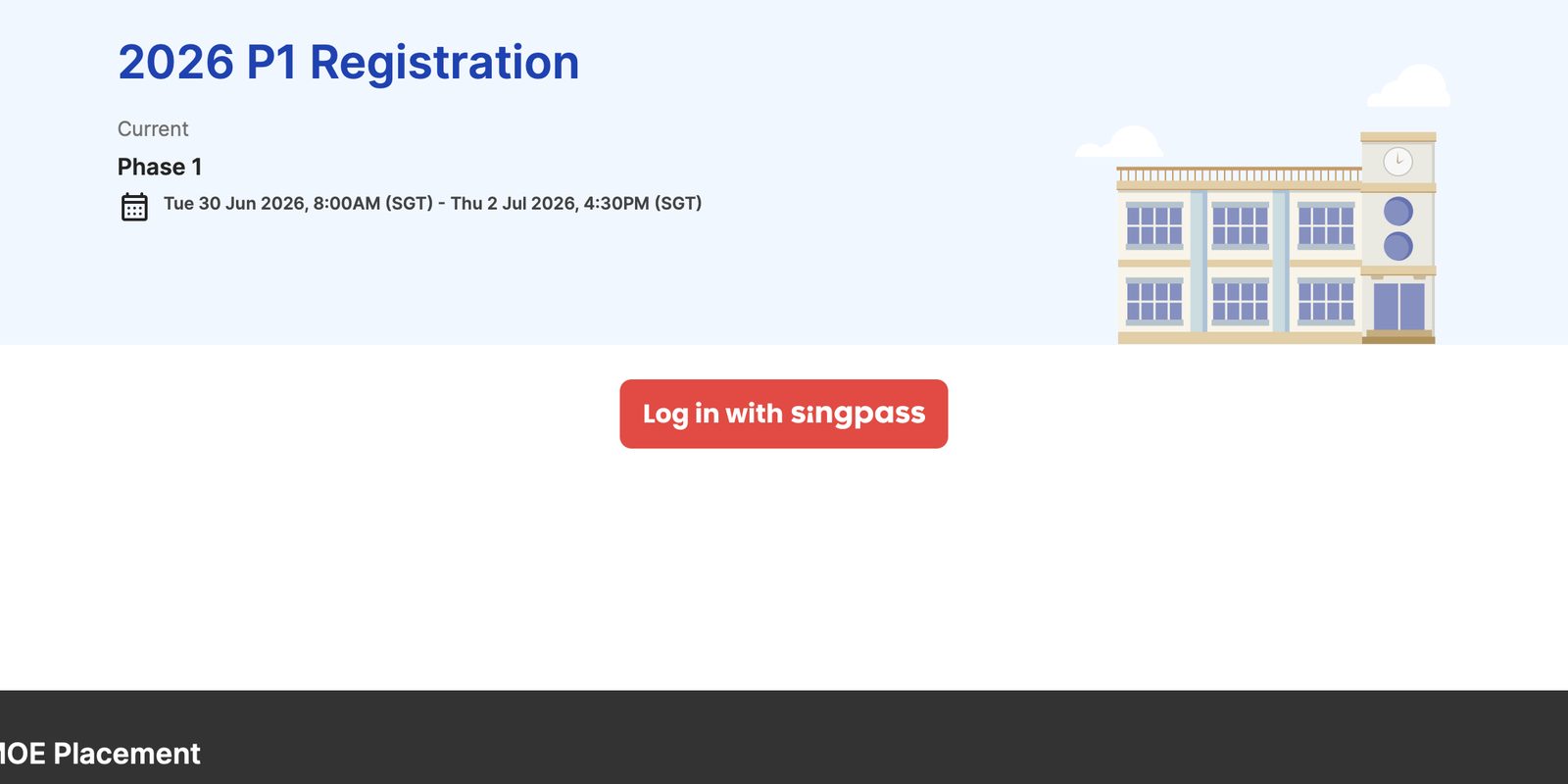
Go to p1.placement.moe.gov.sg and log in with Singpass. Your child appears on the next screen, so tap Register.
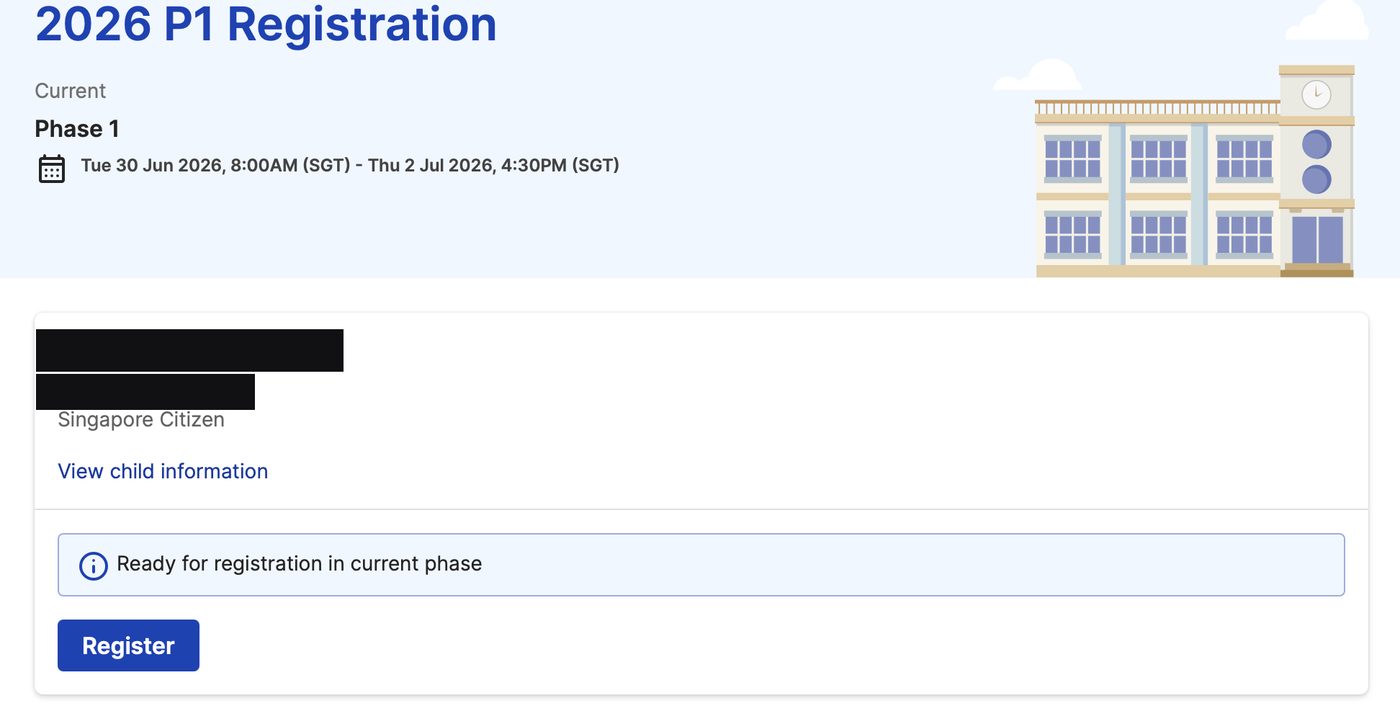
If your child is not listed, ask the other parent to log in and try.
Work through the five steps
The form has five steps: Child, Address, School, Contact, then Review.
- Child: Confirm your child’s details and continue.
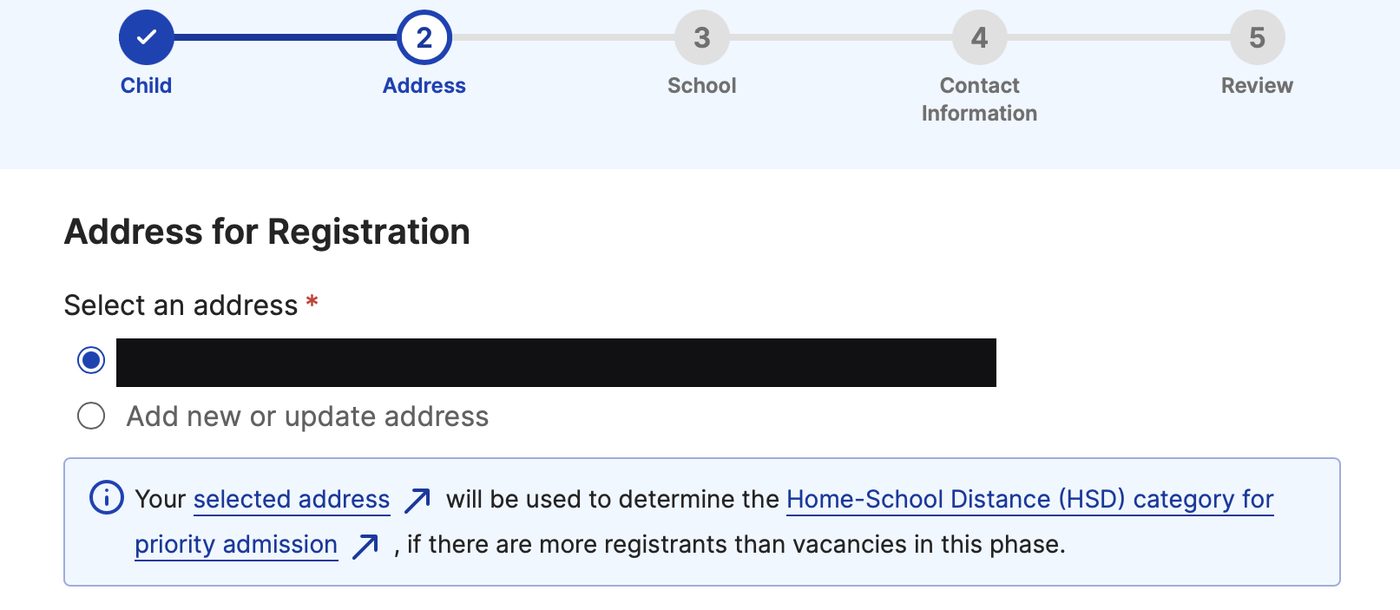
- Address: Choose your NRIC address. It sets your home-school distance band, which matters if the school is oversubscribed.
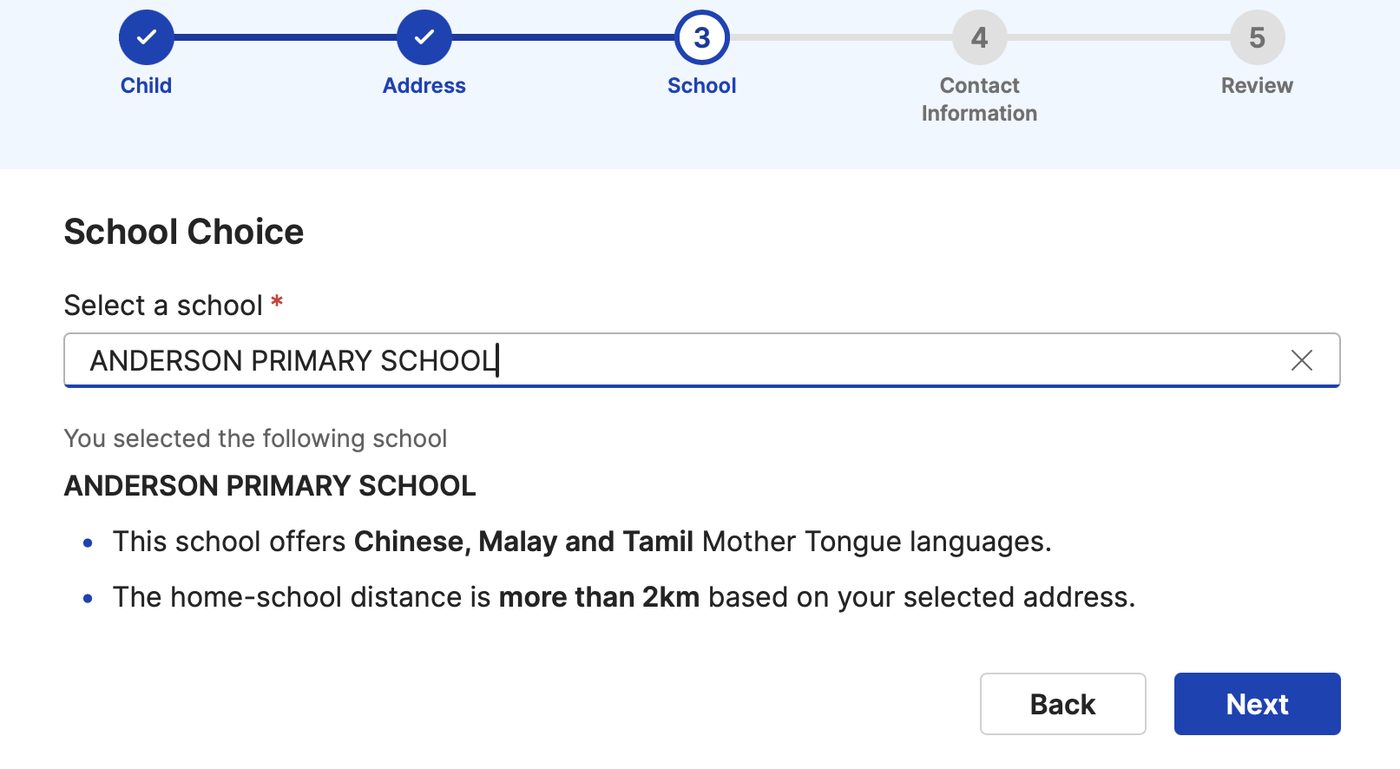
- School: Choose the school. The form shows the mother tongue languages it offers and your distance band.
- Contact: Add your mobile number so you get the result by SMS.
Review and submit
The last step shows everything on one page. Check it, then submit.
You can remove the registration and redo it any time before the phase closes.
After you submit
You will see a confirmation screen.
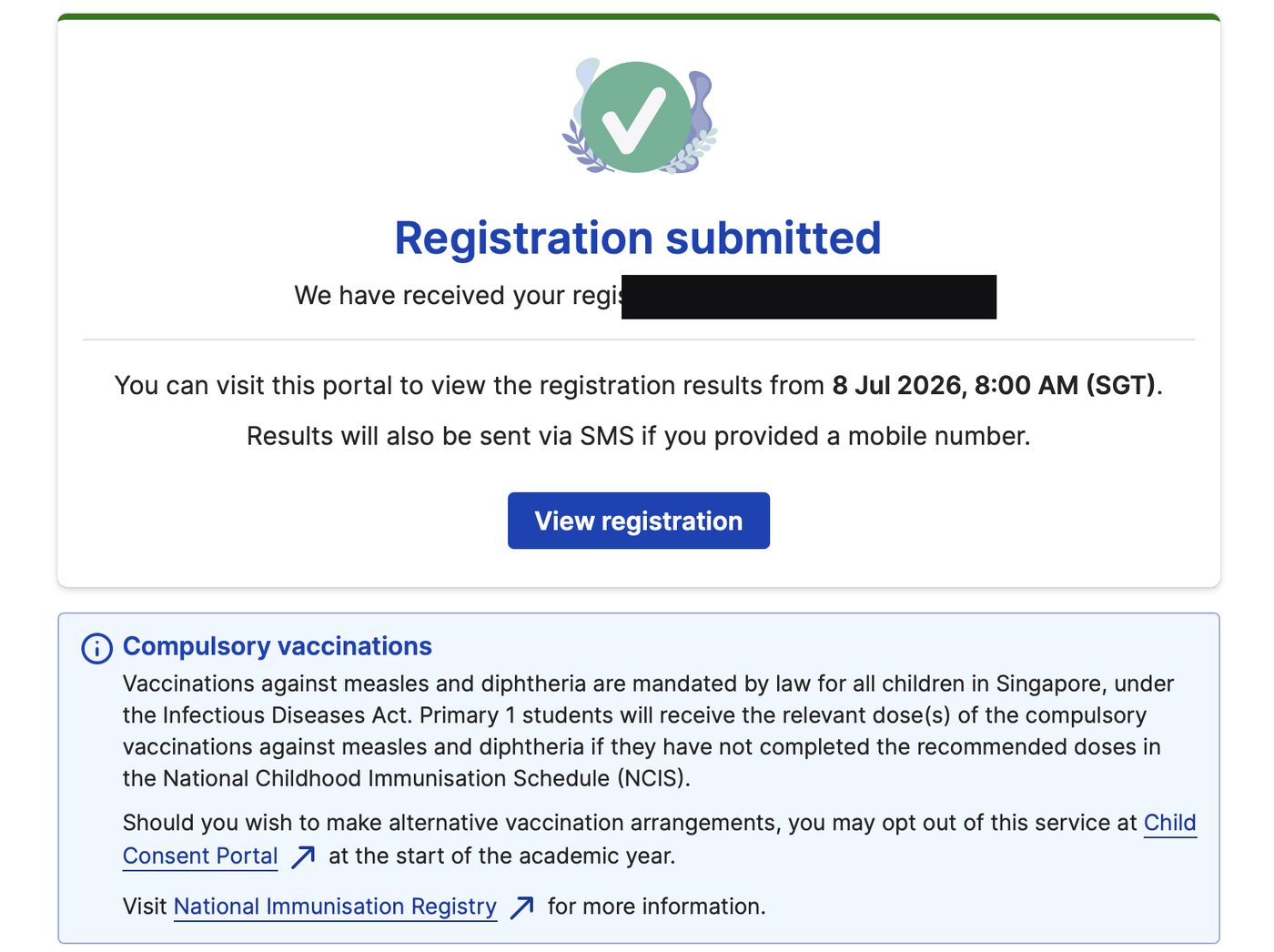
Results are released on the portal on a later date. Check the 2026 key dates for when each phase’s results come out.
Common mistakes to avoid
- Leaving it to the last minute. The portal closes at 4:30pm on the final day.
- Using an address you are about to leave. You need to stay there 30 months if you use it for priority.
Good to know
- Official portal: p1.placement.moe.gov.sg
- See the registration phases and the 2026 key dates.
This walkthrough is based on the 2026 Phase 1 screens. Steps can change from year to year, so always follow the instructions on the official portal.